I've been using Microsoft Vista for about 9 months now on several different machines. My laptop came pre-installed with Vista Ultimate (64bit) and I recently upgraded my main workstation including the install of Vista Home Premium (64bit) (well, the hardware was upgraded, but the OS was downgraded 😉 ).
Over this time I have come to loathe the Vista operating system. Personally, I think it's even worse than the dreaded Windows ME, which was listed at #4 on PC World's 25 Worst Tech Products of All Time list.
I'm not alone with my hatred of Vista either. Ask most IT experts and I think you'll find that a large percentage will agree that Vista is just plain crap. Even Microsoft started to offer a “downgrade” option to PC manufacturers, allowing customers to switch back to Windows XP on some new Vista machines. That's gotta tell you something when the company that wrote the software doesn't have confidence in it.
Come October 22 this year (2009), I'll be going out and buying a copy of Windows 7, which from experience with the Release Candidate version and from various articles around the web, is far superior (and less crappy).
Here are my top reasons for why I hate Vista so much (in no particular order).
1. Extremely slow
One of most common complaints of Vista is how slow it is. It's slow to start, it's slow to operate and it's even slow to shutdown. As an example, it takes my workstation approximately 10 minutes to boot to a useable state. One of the few programs that I have in my startup folder is Microsoft Outlook 2003. Outlook doesn't even start loading until the 8 minute mark. The desktop itself takes approximately 3 minutes to fully display.
You're probably thinking that I'm running a fairly slow PC. Well, I'm not. Remember, I just recently upgraded my machine and I'm now running one of Intel's latest Core i7 processors. See further down this post for more information on the type of hardware I'm running.
2. Browsing folders using Windows Explorer
To browse the contents of your hard drive, you use the Windows Explorer application. In every previous version of Explorer, whenever you clicked on a folder in the left-hand Folder pane, that folder would automatically expand to show you all it's sub-folders. Within Vista, if you simply click on the folder, the only thing it will do is display its content in the right-hand window pane. If you want to expand the folder to see all the sub-folders, you now have to double-click the folder name.
It may seem like a small thing, but when some basic functionality like this changes from hows it's operated for years and years and for for no valid reason, I find that annoying. It also means that it's doubled the amount of clicks required to perform the same action.
3. Folder sort order disappears
When I'm developing a website, I quite often like to sort a folder on the “Date Modified” column within Windows Explorer. This allows me to see the most recently changed files at a glance. I'll do the same thing when viewing a folder full of images.
If you duplicate a file within a folder, Vista takes it upon itself to remove the sort order on that folder. It doesn't even reset it to the “Name” column. It simply removes the sorting altogether. So, after you've duplicated a file, you then have to reset your sort order again.
4. System Tray icons disappear
The “Sytem Tray” within Windows is that small row of icons in the bottom right-hand corner of your display. It's also where the system clock is displayed. These icons show some of the applications you currently having running within your system. One of the “features” of Windows is to automatically hide icons that aren't accessed or used frequently. Unfortunately though, Vista has a tendency to occasionally (and randomly) remove icons all together. It doesn't just simply hide them, it completely removes them from the System Tray. It doesn't actually remove the application from memory, but the icon does disappear.
There is a properties setting that allows you to configure these icons to “Show”, “Hide” or “Hide when inactive”. Changing this setting though does nothing to stop them from randomly disappearing.
5. Application windows constantly display “Not responding”
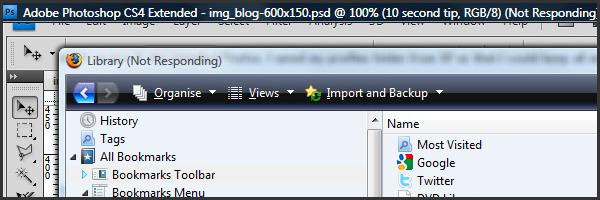
As a constant reminder to how bad Vista memory management is (just in case you needed it. lol), application windows are constantly displaying the “Not responding” message. Normally, you'd expect to see this when the OS is “busy” performing a lot of background tasks and can also be caused by not having enough system RAM. Well, with 6GB's of RAM in my system, I think I should have plenty for Vista to operate smoothly on.
6. Errors when saving network files cause automatic file deletion
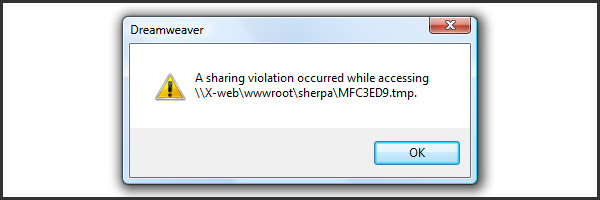
This is one problem that can cause significant issues. As part of my hardware setup, I have all my PC's networked, either wirelessly or via Gigabit Ethernet. For development purposes, I have my own web server. This server obviously stores all my web files (ie. HTML, PHP, ASP, CSS, JS etc). When I'm developing a website, I'll access the files on my webserver, from whatever machine I happen to be using at the time. Sometimes when saving files across the Network, Vista displays a “sharing violation” error advising that it is unable to save the file in question. This in itself, is not a huge deal as you can simply try again. What is a big deal though, is that not only will it advise you that it can't save the file, it will also delete the original copy of the file. So, if you happen to exit out of your file editor without saving the file again, you'll find that not only have you lost your changes that you just made, but you're also missing the original/source file as well! WTF!? To me, that's a serious #fail!
7. Network shares don't map on startup
I have a drive mapped to my web server to make it easier to access files when using Windows Explorer or performing backups. No matter how many times I enter in the Username and Password and select the “Reconnect at login” check box, Vista refuses to store the details and subsequently wont re-map the drive correctly on startup.
8. Editing filenames no longer highlights the complete name
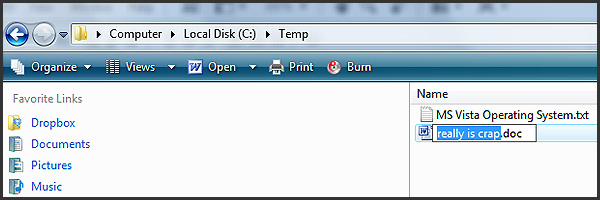
Previously, whenever you single-clicked or pressed F2 on a file to edit its name, the whole filename (including the extension) would highlight. This was perfect for when you wanted to copy filenames into documents or source code. You could hit F2, then Ctrl-C to copy the name and then simply Esc to discard any changes. Now, whenever you edit a filename, only the actual filename gets highlighted and not the file extension. if you want to copy the WHOLE filename, you have to then manually click and drag to highlight the full name and extension.
9. Data fails to be stored in clipboard when copied
The “Clipboard” in Windows is the temporary location where items are copied whenever you select “Copy” from an application menu, hit Ctrl-C or the “Print Screen” button. Vista has a tendency though, not to copy things to the clipboard at random times. Throughout the day i have have to perform the same copy multiple times so that whatever I'm copying, will actually get transfered to the clipboard.
10.Folder View setting constantly needs resetting
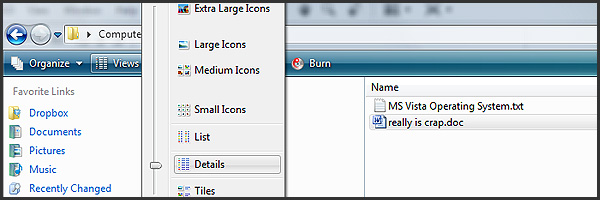
Within Windows Explorer there is an option to set how you would like to view the contents of a particular folder. Even after configuring Vista to remember this setting for each folder, it still constantly needs to be reset. Vista seems to think it knows best when it comes to how you view your folder contents.
11.Folder Type setting constantly needs resetting
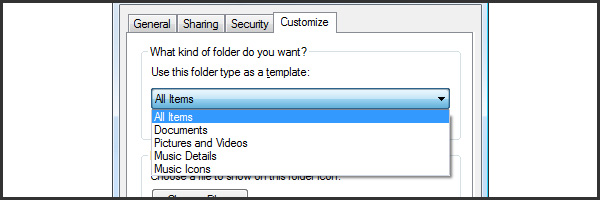
Another option within Windows is the Folder Type. You can use this setting to automatically adjust the Folder View. For example, you can tell Vista that a particular folder contains “Pictures and Videos”. It will then automatically adjust the Folder View setting according to these default “template” settings. Being a bit of a g33k, I like to view my folders with the “Details” view and with the Folder Type set to “All Items” so that you can see a list of filenames (as opposed to icons) and their type and modification date. If the folder contains mostly images, Vista has a tendency to automatically change the Folder Type to “Pictures and Videos” which then automatically changes the Folder View setting and the columns that appear. No matter how many times you reset it back to “All Items”, Vista is constantly changing it behind your back.
12.Intermittent rearranging of desktop and Quick Launch icons
Although not as frequent as some of the other problems I've encountered, I've found that occasionally the icons on my desktop or in my Quick Launch toolbar get rearranged. Hello!! I put them where they are for a reason, how about you just leave them be!
13. Devices randomly reinstall themselves on connection
How many times do devices need to be “installed”! I couldn't tell you how many times I've plugged and unplugged my iPhone from the exact same USB port, yet every so often Vista decides that I'm installing a new device and that it needs to re-install the device driver. What a crock!
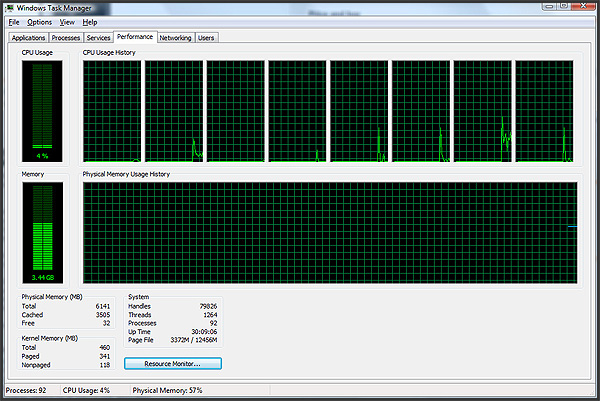
As mentioned above, I'm running one of the latest Intel Core i7 Processors. This chip runs 4 cores/8 threads @ 2.66GHz. My box also has 6GB of RAM, 2 x 1TB HD's and 1GB NVidia graphics card. These specs should be more than “adequate” to run Vista.
So there you have it. My top 13 reasons why I think Vista is crap. Have you got any other reasons that you'd like to share or perhaps you actually like Vista? Leave a comment and let me know.
One positive thing (which to a small extent mitigates #8) is that Ctrl+A works everywhere now – in the folder address bar, file names, the run box, etc. That’s a pet peeve I’ve had with Windows for a long time that MS changed with Vista (and lives on in 7, FTW). The fact that it took that long to make such a standard key shortcut actually WORK everywhere is a different issue altogether…
I actually never encountered half of these problems (or didn’t notice them, anyway). The reinstalling device thing is normal for every OS if you mean actually saying it’s detected a new device – so long as it’s not actually asking you to find your drivers again, and so long as it’s not making you DO anything (other than see the little notice saying it’s found new hardware) I can’t see why it’s a problem really…
Overall though there are quite a few problems that were introduced with Vista, and in terms of the UI most of them are still there. The difference is that 7 is faster and in general more stable than I found Vista to be, when I was using it.
Thanks for your comment Bill.
Yeah, true re the device detection. It doesn’t actually prompt for any drivers or anything, which it shouldn’t anyway since they’re already installed on the system. Like your Ctrl+A issue, it’s more of a pet peeve. If the device has already been detected and installed, then to my way of thinking, it shouldn’t turn around a month later and say “Hey, I found a new device, let me just install it before you can use it”. Hello!! I’ve been using it for the past XX months!
I know this did happen in XP as well as some of the other issues I mentioned above, but nowhere near the frequency as what they do in Vista.
Ah well, I feel better now that I’ve got all that off my chest 😉
Pingback: 13 Reasons Why Vista Is Crap | Adobe Tutorials
Pingback: News 13 Reasons Why Vista Is Crap | Web 2.0 Designer
as far as resetting the folder view settings/template I found a fix online that resolved this for me. I have identical hardware specs to yours but my system starts up just over 1 min and is good to go. Maybe sp2 or installed software but… I’m glad for waiting till now to upgrade to Vista as I get a free upgrade to windows 7. check out the link above. If you don’t trust the .reg file they have the manual instructions on the site too. I’m sure there are a few other registry fixes available for some of the other problems but M$ has failed to not suck for some time (since 3.11 in my opinion). MAC is looking better every day not to mention Linux.
http://www.vistax64.com/attachments/tutorials/13562d1245282904-windows-explorer-folder-view-settings-reset_folder_view.zip
Thanks for the info Tim. I’ll check it out. 🙂
Pingback: My Windows 7 Installation Experience | Maddison Designs
A few weeks ago I purchased a good new laptop with Vista Business on it. I hardly know where to begin describing my disgust with the new OS. I feel like I’m fighting it all the way, that it refuses to do what I wish, for example:
1. I cant find anything: I want to put settings to what I’m used to and I want to navigate around the hard-drive. Unfortunately files all seem to have been moved to other places and for no good reason that I can understand. The navigator has no “stepping back” button that I can find. I HATE the navigator layout and cannot change it to the format I had in xp. The icons have all been changed, I’m not interested in wasting my time having to learn new icons for familiar file types, like file folders, trashcan etc.
2. It is SLOW. My old computer was orders of magnitude less powerful than this new one; yet on xp it could boot up, shut down and open programs faster than Vista on my new machine.
3. Compatibility is crap – My word files don’t carry over without stuffing around for hours. Out of disgust I uninstalled the useless looking new Office and installed my old, familiar 2003 xp one. Its now stable and faster although Vista continually sends me nonsense compatibility error messages.
3. The clipboard only works half the time, single and double clicks do wierd stuff contrary to my wishes so I end up giving up on the most trivial tasks of cut and pasting files etc. (This was all easy enough for me to do on xp).
4. Perhaps the most serious problem of all, although I dont know if this is a hardware or operating system fault, is the whilst typing text the cursor may jump into some random location of the text, thus rendering my work gibberish. This happens most on Yahoo mail, less on word, and strangely has not happened at all whilst I type in this text box here.
Summary: I hate it, I hate it. I want xp back. Please advise me if I can just install xp with SP3 on my machine without making matters worse.
Thanks
A few hours later, and I’m delighted to say that I’ve removed vista, created a logical arrangement of partitions and installed xp pro. My new laptop now feels like a new machine. It runs fast, I like it, I know where everything is.
As an added bonus I’m now rid of all the nuisance “free” software that asks for registration (money and time), so I can now easily install all of my old software from my old xp laptop and be sure that I shall have no comatibility problems.
MS really need to end their strategy of software redundancy. I shall more likely than not move over to Linux if I meet this problem again when my new laptop is ready for replacing, and no doubt hordes of others feel the same way.
Good choice removing Vista Rich! This OS caused no end of problems for me. The only reason I stuck with it rather than going back to XP was that I knew Windows 7 was coming along soon. It was 64bit whereas my XP was only 32bit. Since I had over 4GB’s of memory I didn’t wan’t to waste over 2GB’s of it by going back to a 32bit OS. Also, even if I’d managed to get my hands on a copy of XP 64bit, unfortunately there’s very limited drivers available for that OS.
Thankfully now I’m Vista free, with all my machines are running Win7. Yay!
Pingback: Thoughts on User Testing - Synaptic Mishap
“11.Folder Type setting constantly needs resetting”
Ain’t that the truth. I work in the film industry, so naturally my folders are full of odd bits of video and audio and Vista ALWAYS decides I want to view crap like some row of little stars (!!!!!).
No. For over twenty years I’ve managed just with the name (including extension), the date and time of creation (very important when I have multiple edits of the same sequence) and the size. But no matter how often I tell Vista just to display file names and their attributes, it keeps reverting to ‘artist name’ and other irrelevances.
And MS have managed to break search. It was going downhill in XP (asking if you wanted to search for ‘files and folders’ or something else – duh, MS, you of all people should know that there are ONLY FILES AND FOLDERS ON A COMPUTER!!!!!), but in Vista it’s completely broken, luckily I found ‘Agent Rucksack’ which is not only much faster, it also allows for multiple filters.
In my humble opinion, Windows reached its heights with Win 2000 and they haven’t really introduced anything important since. With Vista there are often times that I just drop back to the C:> prompt, it’s quicker and MUCH simpler than f**king around with all MS’s silly pictures.
Hi Anthony
Thank you for this article. Vista really is a heap of s…t. Started my own business recently and its really slowed me down and is still doing so. Will have to bite the bullet and buy Win 7 but it really p…ses me off that have to pay for it. They should give it to ANYONE that bought Vista. Wish I could change to Mac – might look into it. Thanks again – love your file names!
Thanks for your comment Julia. I feel your pain!! It’s definitely worth upgrading to Win7. There’s still a few little issues but overall, it is sooooo much better than vista!
Thanks for feeling my pain Anthony! Going to get Win 7 and pay for it otherwise close to throwing the computer over the balcony. Thanks for the advice.
i have been using windows since win2000, after i bought a new notebook, it came with vista,this is the worse system i ever used, it, out of the box, it already very slow to startup and shut down, and each click it need 10-20 seconds to response, while all my other device like nokia phone, ipod touch, and macbook works with my home wifi, the vista never works, no matter what i set, the only thing it can online is connect with lan cable.
I personally think that if microsoft or billgate? can’t produce a usable system, please don’t kill win2000 and xp, these are the usable system so far.
Yeah, not sure what they were smoking when they released Vista! What a crappy OS it is! Thanks for your comment John 🙂
Pingback: Why I switched from PC to Mac | Maddison Designs